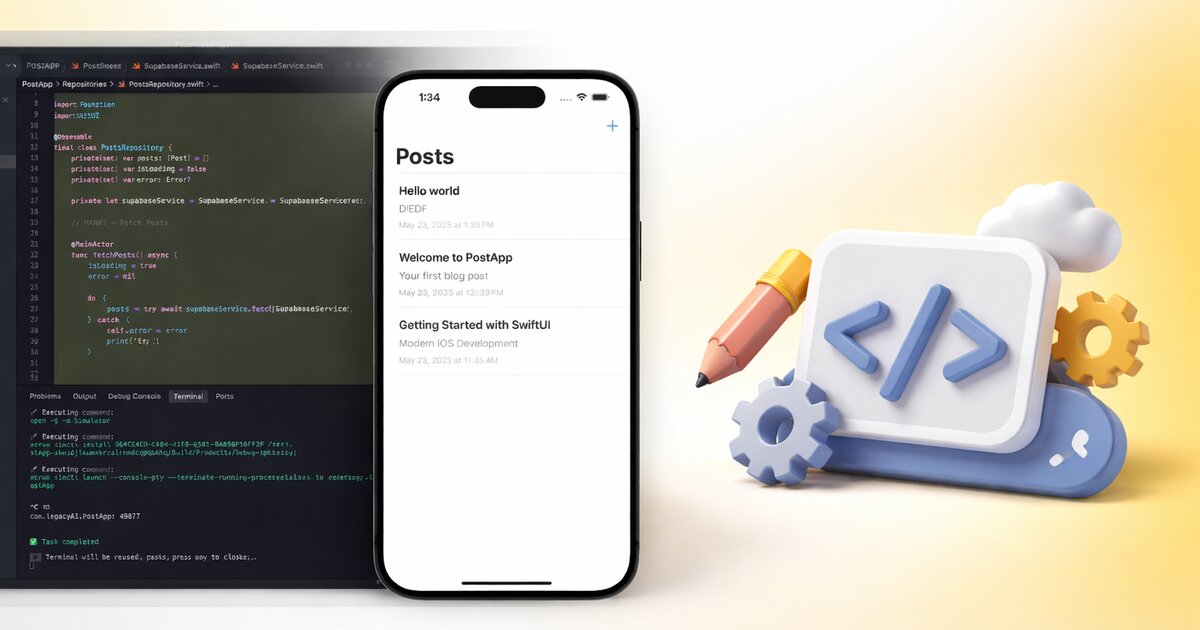
Mobile apps used to require specialized knowledge. Xcode, Android Studio, platform-specific APIs, device testing setups.
With React Native and AI tools, the barrier is dramatically lower. One codebase. One AI assistant. Apps for both platforms.
Here’s how to build mobile apps with vibe coding.
Why React Native for AI Development
React Native is ideal for AI-assisted mobile development because:
JavaScript/TypeScript: AI tools understand web technologies deeply. The same patterns that work for web development translate directly.
One codebase: Write once, run on iOS and Android. Less code means fewer prompts, faster development.
Hot reloading: See changes instantly. The feedback loop with AI is tight.
Expo: The Expo framework makes React Native even easier. No Xcode or Android Studio needed for most apps.
Rich ecosystem: Components, libraries, and patterns that AI knows well.
Getting Started
The Stack
For AI-friendly mobile development:
- React Native with Expo
- TypeScript for type safety
- Expo Router for navigation
- NativeWind (Tailwind for React Native)
- Supabase or Firebase for backend
This stack is well-documented and AI tools generate high-quality code for it.
Setting Up
Create a CLAUDE.md for your mobile project:
# My Mobile App

## Stack
- React Native with Expo SDK 50
- TypeScript
- Expo Router for navigation
- NativeWind for styling
- Supabase for backend

## Target
- iOS and Android
- Minimum iOS 13, Android 10

## Structure
- /app - Routes (Expo Router)
- /components - Reusable components
- /lib - Utilities and API
- /hooks - Custom hooks
- /assets - Images and fonts

## Conventions
- Functional components
- Use hooks for state
- NativeWind classes for styling
- Platform-specific code only when necessary
Initial Setup with AI
“Create a new Expo project with TypeScript, Expo Router, and NativeWind. Set up the folder structure defined in CLAUDE.md. Include a basic tab navigation with Home and Profile tabs.”
Claude generates the project structure. Run it:
npx expo start
Scan the QR code with Expo Go on your phone. You have a running app.
Building Core Features
Let’s build a complete feature to show the workflow.
Example: A Simple Notes App
The Database
“Set up Supabase for a notes app. Create a notes table with: id, user_id, title, content, created_at, updated_at. Include row-level security. Generate the migration and the TypeScript types.”
Run the migration. Configure Supabase client in your app.
Authentication Screen
“Create an authentication flow with Expo Router. Add screens at /(auth)/login and /(auth)/signup. Use Supabase Auth with email/password. After successful auth, redirect to the main tabs. Style with NativeWind for a clean, modern look.”
Test login and signup on your device.
Notes List Screen
“Create the home tab that shows a list of notes. Fetch from Supabase, display each note with title and preview of content. Add a floating action button to create new notes. Handle empty state when no notes exist. Show loading state while fetching.”
Note Editor Screen
“Create a screen at /note/[id] for viewing and editing a note. Show title as a large text input at top, content as a multiline text input below. Auto-save changes after the user stops typing for 1 second. Add a delete button in the header. Handle back navigation to save any pending changes.”
Create Note Flow
“Wire up the floating action button to create a new note in Supabase and immediately navigate to the editor for that note. Show loading state during creation.”
You now have a working notes app.
Mobile-Specific Patterns
Mobile development has patterns that differ from web. AI handles these well if you ask for them.
Pull to Refresh
“Add pull-to-refresh to the notes list. When pulled, refresh the data from Supabase. Show the refresh indicator while loading.”
<FlatList
  data={notes}
  refreshing={refreshing}
  onRefresh={handleRefresh}
  renderItem={({ item }) => <NoteCard note={item} />}
/>
Keyboard Handling
“In the note editor, make sure the content input scrolls above the keyboard when focused. Use KeyboardAvoidingView or a similar solution. The save button should remain visible above the keyboard.”
Gestures
“Add swipe-to-delete on note cards in the list. Swipe left to reveal a delete button. Confirm deletion with an alert before actually deleting.”
Offline Support
“Add basic offline support. Cache notes locally using AsyncStorage. When offline, show cached notes. When online, sync with Supabase. Show an offline indicator in the header when not connected.”
Push Notifications
“Set up push notifications with Expo. Request permission on first launch. When a new note is shared with the user, send a notification. Handle tapping the notification to open that note.”
Platform-Specific Code
Sometimes you need different behavior on iOS vs Android.
“The delete confirmation should use an ActionSheet on iOS and an AlertDialog on Android. Implement platform-specific confirmation for deleting notes.”
Claude generates code using Platform.OS checks or platform-specific file extensions (.ios.tsx, .android.tsx).
Common Mobile Patterns with AI
Navigation Patterns
“Implement a settings screen accessible from the profile tab. Use a stack navigator within the profile tab so settings can slide in from the right. Include back navigation.”
Modal Screens
“Add a quick-add modal that appears over the current screen. User can type a note title, hit save, and it creates the note and dismisses. Present as a modal that covers 70% of the screen from the bottom.”
Tab Bar Customization
“Customize the tab bar to show icons for each tab. Use Ionicons. The active tab should have a different color. Add a subtle shadow at the top of the tab bar.”
Image Handling
“Add profile photo support. Users can tap their avatar to either take a photo or choose from library. Upload to Supabase Storage. Show a loading indicator during upload. Display the new photo immediately after upload completes.”
Form Handling
“Create a settings form with: display name (text), email (read-only), notification preferences (switch), and a sign-out button. Use react-hook-form with zod validation. Save changes to Supabase when the form is submitted.”
Debugging Mobile Apps
Mobile debugging with AI works similarly to web.
Describing Mobile Bugs
“When I tap a note card, the app crashes. Here’s the error from the Metro bundler:
[paste error]
The crash happens specifically when the note content is null (older notes from before we added content field).”
Device-Specific Issues
“On Android, the keyboard covers the input field. On iOS it works fine. Here’s my current KeyboardAvoidingView setup: [paste code]”
Performance Issues
“The notes list is laggy when scrolling. I have about 100 notes. Here’s my FlatList implementation: [paste code]”
Claude might suggest adding keyExtractor, implementing getItemLayout, or using memo for list items.
Testing on Devices
Development Testing
Expo Go lets you test on real devices without building:
- Run
npx expo start - Scan QR code with Expo Go app
- See changes instantly
Building for Distribution
When ready for production:
“Help me set up EAS Build for this Expo app. I want to create a production build for both iOS and Android. Walk me through the configuration and submission process.”
Expo’s EAS (Expo Application Services) handles the complexity of native builds.
Real Example: Fitness Tracker
Let me walk through a more complete example.
Features
- Track workouts (type, duration, date)
- View workout history
- Weekly summary stats
- Reminder notifications
Building It
Day 1:
“Set up the project structure for a fitness tracker with Expo, TypeScript, NativeWind, and Supabase. Create the database schema for workouts (id, user_id, workout_type, duration_minutes, date, notes). Include the basic tab navigation: Log, History, Stats, Profile.”
“Build the Log tab where users can record a workout. Include a picker for workout type (Running, Cycling, Swimming, Weights, Other), a number input for duration, a date picker (defaults to today), and an optional notes field. Save to Supabase on submit.”
Day 2:
“Build the History tab showing all workouts in a list, grouped by date. Most recent first. Each workout card shows the type (with an icon), duration, and time. Tapping a card opens a detail view where you can edit or delete.”
“Build the Stats tab. Show: total workouts this week, total minutes this week, workout streak (consecutive days with at least one workout), and a bar chart showing workouts per day for the last 7 days.”
Day 3:
“Add reminder notifications. In the Profile tab, let users set a daily reminder time. Use Expo Notifications to schedule a daily notification at that time. The notification should say ‘Time to work out!’ and tapping it opens the Log tab.”
“Polish the app. Add loading states, error handling, empty states for each tab, and smooth animations for transitions. Review for accessibility.”
Day 4:
“Prepare for production. Review all code for issues. Set up EAS Build configuration. Create app icons and splash screen. Write a basic privacy policy since we’re handling user data.”
Total development time: about 16-20 hours across 4 days. A functional fitness tracking app for iOS and Android.
Build Mobile Apps with AI
Get the complete mobile development course with project templates and deployment guides.
Get the CourseCommon Challenges
Expo Limitations
Some features require ejecting from Expo or using specific libraries. AI can guide you:
“I need to access the device’s Bluetooth capabilities. Can I do this with Expo, or do I need to eject? What are my options?”
Performance
Mobile performance is more constrained than web:
“This screen renders 50 items and it’s slow. Review this FlatList implementation and suggest optimizations for mobile performance.”
App Store Submission
The stores have requirements:
“Walk me through what I need to submit this app to the iOS App Store and Google Play Store. What metadata, screenshots, and policies do I need?”
The Mobile Vibe Coding Advantage
Mobile development traditionally had a higher barrier to entry. Native development requires learning Swift/Kotlin, understanding platform-specific patterns, managing two codebases.
AI + React Native + Expo changes the equation. You describe what you want. You get mobile apps.
The same person who can vibe code a web app can vibe code a mobile app. The skills transfer directly.
If you’ve been avoiding mobile development because of the complexity, now’s the time to try. The tools have caught up.
Open Claude Code. Start a React Native project. Build something for your phone.
You might be surprised how easy it’s become.